
Auto-Fill Forms (DOCX, Excel, PDF)
Transform structured data into completed forms in seconds, with no manual copy-paste, no typos, no format issues.
Why This Matters
The problem: Manually filling out forms typically takes 30+ minutes of copy-paste, reformatting, and error-checking.
The FabriXWork way: Your agent reads source documents and fills the entire form automatically. Update the source, regenerate in seconds.
See It in Action: Fill In Expense Claim DOCX Form from Receipts
This demo shows how receipt PDFs and images become a completed expense claim form (in DOCX) instantly.
Note: Some scenes in this video have been accelerated to 10× speed to enhance the viewing experience. The prompt used in this video can be found in the Featured Example section below.
How it Works:
┌────────────────────────────────────────────────────────────┐
│  INPUT                            OUTPUT                   │
│  ┌──────────────┐                 ┌─────────────────────┐  │
│  │ receipt-001  │                 │  Completed Expense  │  │
│  │ receipt-002  │                 │  Claim Form         │  │
│  │ receipt-003  │     ──────►     │  • Employee Info    │  │
│  │              │     Agent       │  • 3 Line Items     │  │
│  │ employee-    │    Extract +    │  • Category Totals  │  │
│  │   info.docx  │      Fill       │  • Grand Total      │  │
│  └──────────────┘                 │                     │  │
│                                   │  DOCX (Ready to     │  │
│                                   │   submit for        │  │
│                                   │   reimbursement)    │  │
│                                   └─────────────────────┘  │
└────────────────────────────────────────────────────────────┘
The Pattern:
- You have source receipts (PDFs, images, screenshots)
- Agent extracts data using OCR and text extraction
- Agent maps expenses to categories and calculates totals
- You review, sign, and submit for reimbursement
Try It Out
Tip
Choose the scenario that best matches your needs, then adapt the prompt to fit your content and goals.
- Prepare your documents — Source documents, reference data, form template
- Choose an agent — All agents support form-filling (Alex - Business Analyst is recommended for business forms)
- Connect your folder — Select agent → Click "Browse" → Choose folder
- Enter your prompt - Use the examples below as inspiration. Adapt them to your content and goals
Featured Example: Fill In Expense Claim DOCX Form from Receipts
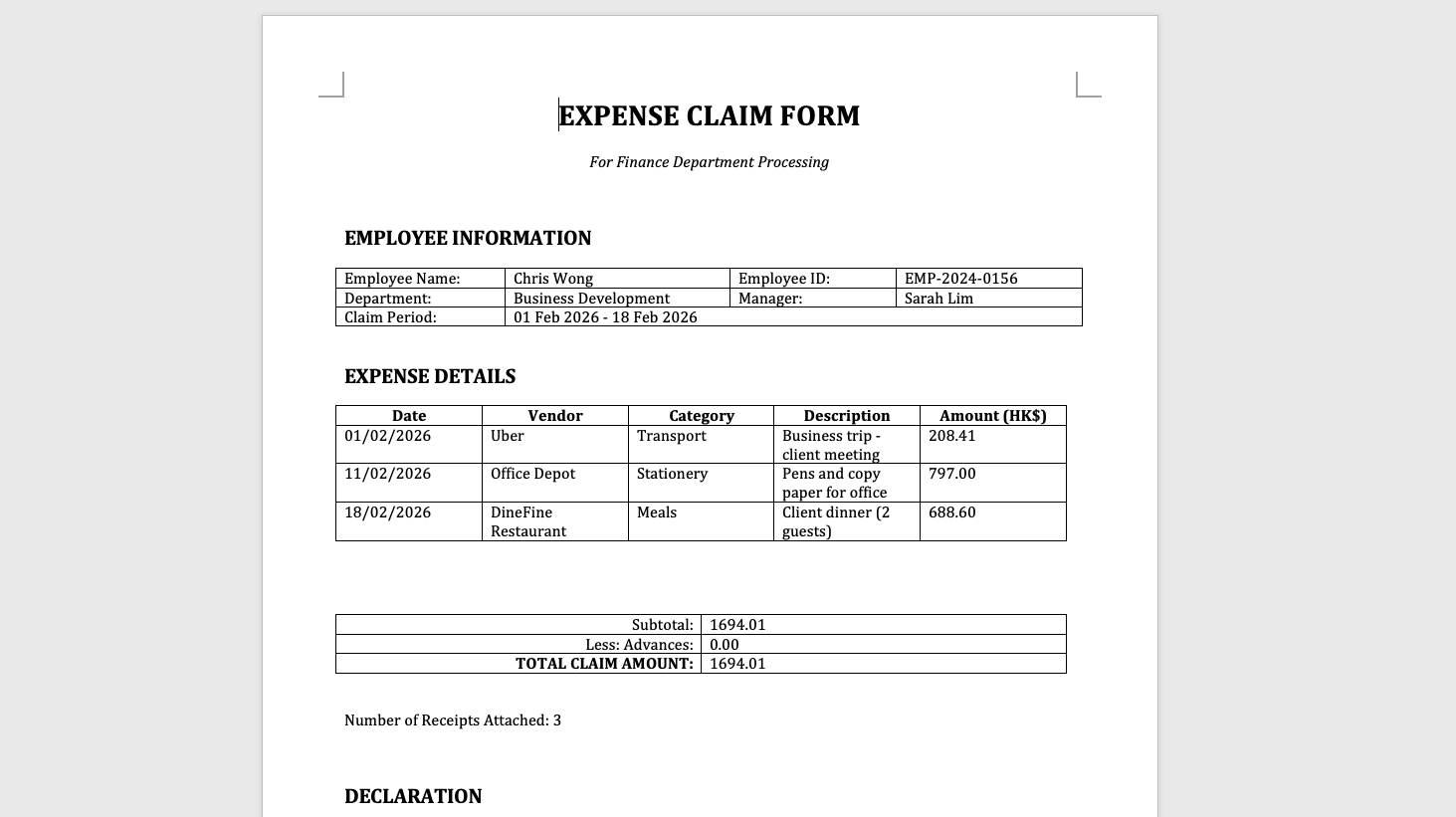
Scenario: You need to complete an expense claim form by extracting data from receipt PDFs and images.
Example Files:
data/receipts/— Receipt folder (PDFs and images: transport, stationery, meals)data/employee-info.docx— Employee details and bank informationtemplates/Expense-Claim-Form-Template.docx— Claim form template to fill
Example Prompt:
Tip
Use Plan Mode first to review the proposed structure before building. Learn more about the different modes in How to Interact with an AI Agent
Fill out the Expense-Claim-Form-Template.docx using the receipts and employee info in my connected folder.

Instructions:
1. Extract data from each receipt (date, vendor, amount, category)
2. Map expenses to categories: Transport, Stationery, Meals, etc.
3. Populate the expense table with all receipts
4. Calculate the grand total
6. Mark any unclear receipts as [NEEDS REVIEW]
7. Add or remove item rows if necessary
8. Save as "Expense-Claim-Form-completed.docx" in the outputs folder
Make It Your Own
Don't simply copy this prompt, adapt it. Ask yourself:
- What receipt files do you have: PDFs, images, or both?
- What expense categories apply: Travel, Meals, Accommodation, Supplies?
- What approval workflow: Manager sign-off, Finance processing?
Examples:
- Travel expenses: "Flight tickets + Hotel + Taxi receipts → Travel claim form"
- Project expenses: "Client meal receipts + Transport → Project reimbursement"
- Office supplies: "Stationery receipts + Equipment → Department budget claim"
More Examples to Inspire You
Example 2: DOCX Form - Bidding Application — See how company documents populate RFP forms
Scenario: You need to complete an RFP bidding form using information from your existing company documents.
Example Files:
annual-report.docx— Company info, project historyfinancial-statements.xlsx— Assets, net worth, ratiosInfrastructure-Bidding-Template.docx— RFP form template to fill
Example Prompt:
Fill out the Infrastructure-Bidding-Template.docx using data from my connected folder.

Instructions:
- Extract data from source documents
- Mark missing data as [NEEDS MANUAL ENTRY]
- Keep the original form structure and formatting unchanged
- Save as "Infrastructure-Bidding-completed.docx" in the outputs folder
Make It Your Own
Adapt this for:
- Contract template → "Parties → Scope → Payment Terms → Signatures"
- Project proposal → "Executive Summary → Approach → Timeline → Budget"
- Compliance report → "Audit data → Regulatory submission form"
Example 3: Excel Form - Expense Report — See how structured data populates financial templates
Scenario: You need to fill your company's monthly expense report template using receipt data already extracted by your agent.
Example Files:
receipts-data.md— Date, vendor, amount, category for each expenseMonthly-Expense-Report-Template.xlsx— Company template with formulasproject-codes.xlsx— Budget code mapping reference
Example Prompt:
Fill out the Monthly-Expense-Report-Template.xlsx using data from my connected folder.

Instructions:
- Map each expense to the correct category based on project-codes.xlsx
- DO NOT modify formula cells in Summary sheet
- Flag uncategorized expenses as [CODE NEEDED]
- Save as "Monthly-Expense-Report-completed.xlsx" in the outputs folder
Make It Your Own
Adapt this for:
- Budget planning: "Map department requests → Budget template categories"
- Financial consolidation: "Combine subsidiary data → Group reporting template"
- Data migration: "Extract from old system → New system import template"
Example 4: PDF Form - Vendor Registration — See how fillable PDFs get completed automatically
Scenario: You need to complete a vendor registration PDF form using company information from your existing documents.
Important: Fillable PDF Only
This works only with fillable PDF forms (PDFs with interactive form fields). For non-fillable PDFs, convert to DOCX first.
Example Files:
company-profile.docx— Company info, history, capabilitiesbusiness-certificates.pdf— License numbers, tax IDs, certificationsVendor-Registration-Form.pdf— Fillable PDF template
Example Prompt:
Fill out the Vendor-Registration-Form.pdf using data from my connected folder.

Instructions:
- Extract exact data from source documents
- Use precise legal names and numbers from certificates
- Mark fields as [NEEDS MANUAL ENTRY] if data not found
- Save as "Vendor-Registration-Form-completed.pdf" in the outputs folder
Make It Your Own
Adapt this for:
- Government applications: "Business licenses → Permit application forms"
- Compliance forms: "Audit documents → Regulatory submission forms"
- Onboarding forms: "Employee data → HR system intake forms"
How to Check if PDF is Fillable:
- Open PDF in Adobe Reader or browser
- Try clicking on form fields
- If fields highlight and allow typing → Fillable ✓
- If nothing happens → Not fillable (convert to DOCX first)
Make It Even Better
Quick Wins
- Use Plan Mode first for complex forms. Learn more about the different modes in How to Interact with an AI Agent
- Provide field mapping: e.g. "Map 'Annual Revenue' in source → 'Annual Turnover' in form"
- Reference files by name: e.g. "Extract tax ID from business-certificates.pdf"
- Set validation rules: e.g. "Validate that all financial figures match across documents"
Review & Refine
Always verify the generated output before using, sharing, or submitting it.
What to Check:
- Accuracy — Verify data, figures, and facts match your source documents
- Completeness — Ensure all required fields or sections are completed
- Formatting — Check that the structure and styling meet your requirements
How to Request Corrections:
For form fields:
"Field [X] shows [incorrect value]. Please extract the correct data from [source document] and update the form."
For missing content:
"Section [X] is incomplete. Please extract [specific information] from [source document] and add it."
For refinements:
"The tone is too [casual/technical]. Please adjust to be more [professional/concise]."
Format-Specific Tips
- DOCX: Maintain original template formatting, use section headers
- Excel: Protect formula cells, specify exact column names
- PDF: Test fillable first, provide exact field names, truncate long text if needed
Reference & Details
Advanced Prompting Tips — Get better results with these techniques
1. Provide Field Mapping
✅ Good: "Map 'Annual Revenue' in annual report → 'Annual Turnover' in form"
❌ Vague: "Use data from my annual report"
2. Set Validation Rules
✅ Good: "Validate that all financial figures match across documents"
❌ Vague: "Make sure the data is correct"
3. Request Completion Report
✅ Good: "After filling the form, provide a summary of completed vs. manual entry fields"
❌ Vague: "Let me know when done"
4. Specify Missing Data Handling
✅ Good: "Mark any fields you can't fill as [NEEDS MANUAL ENTRY] with a note"
❌ Vague: "Fill in what you can"
6. Test with Sample Data First
✅ Good: "Fill out one section first so I can review before completing the entire form"
❌ Vague: "Fill out the whole form"
7. Specify Format Preservation
✅ Good: "Maintain original template formatting, DO NOT modify formulas in Excel"
❌ Vague: "Keep the format"
More Adaptation Ideas — Extend beyond these examples
Common Form Types
| Form Type | Example Use Case | Key Considerations |
|---|---|---|
| Contracts | Service agreements, NDAs | Preserve legal language, mark clauses for review |
| Proposals | RFP responses, project bids | Map technical specs, pricing, timelines accurately |
| Reports | Compliance, audit, status | Maintain structure, verify all data points |
| Applications | Licenses, permits, registrations | Use exact legal names, double-check IDs |
| HR Forms | Onboarding, benefits, reviews | Protect sensitive data, follow privacy rules |
| Financial | Invoices, expense reports, budgets | Preserve formulas, validate calculations |
Source Document Types
| Source Type | Best For | Extraction Tips |
|---|---|---|
| Annual Reports | Company info, financials | Extract from audited sections only |
| Financial Statements | Balance sheets, P&L | Cross-verify figures across documents |
| Contracts | Terms, parties, dates | Preserve exact legal wording |
| Emails | Confirmations, approvals | Include sender/date for audit trail |
| Database Exports | Structured data, lists | Map column names to form fields |
| Scanned Documents | Certificates, licenses | Use OCR, verify accuracy manually |
Troubleshooting — Common issues and solutions
Quick Fixes
| Issue | What to Try |
|---|---|
| Data not found in source | "Check if source document is in connected folder" |
| Wrong data extracted | "Map 'X' in source document → 'Y' in form field" |
| Numbers don't match across sources | "Cross-verify figures across all documents and use the most recent" |
| Formatting broken in output | "Maintain original template formatting and styles" |
| Fields left blank | "Mark any fields you can't fill as [NEEDS MANUAL ENTRY] with a note" |
Format-Specific Issues
| Issue | Format | What to Try |
|---|---|---|
| Can't fill form | PDF is not fillable - convert to DOCX first or use PDF editing software | |
| Formulas broken | Excel | Explicitly state "DO NOT modify formula cells in Summary sheet" |
| Fields missing | DOCX | Provide complete field list with section headers |
| Data in wrong cells | Excel | Specify exact column names and sheet structure |
| Text overflow | Request "truncate long text to fit field constraints" | |
| Tables misaligned | DOCX | Include "preserve table structure and cell borders" |
Supported Form Formats — Technical details
DOCX Forms:
- ✅ Full support for templates with placeholders
- ✅ Preserves formatting, styles, tables
- ✅ Can add/remove sections as needed
- ✅ Best for: Contracts, proposals, reports, applications
Excel Forms:
- ✅ Full support for templates with formulas
- ✅ Preserves calculations, formatting, multiple sheets
- ✅ Can map data to specific cells/columns
- ✅ Best for: Expense reports, budgets, financial templates, data migration
PDF Forms (Fillable Only):
- ✅ Supports interactive PDF forms with form fields
- ✅ Fills text fields, checkboxes, dropdowns
- ⚠️ Requires fillable PDF (test before using)
- ❌ Non-fillable PDFs need conversion to DOCX first
- ✅ Best for: Registration forms, government applications, compliance forms
To share: Email the completed form or upload to your document management system.
Related Use Cases
- Check Documents for Compliance — Validate documents against compliance rules and requirements
- Create Presentation Slides from Your Documents — Transform documents into presentations
- Customer Insight & Strategy Recommendations — Analyze data, generate insights, transform into presentation