
How to Interact with an AI Agent
Getting great results from your AI agents is all about how you communicate. This guide shows you how to give effective instructions and use the chat interface effectively.
Understanding the Chat Interface
Before diving into best practices, let's walk through the chat interface so you know where everything is.
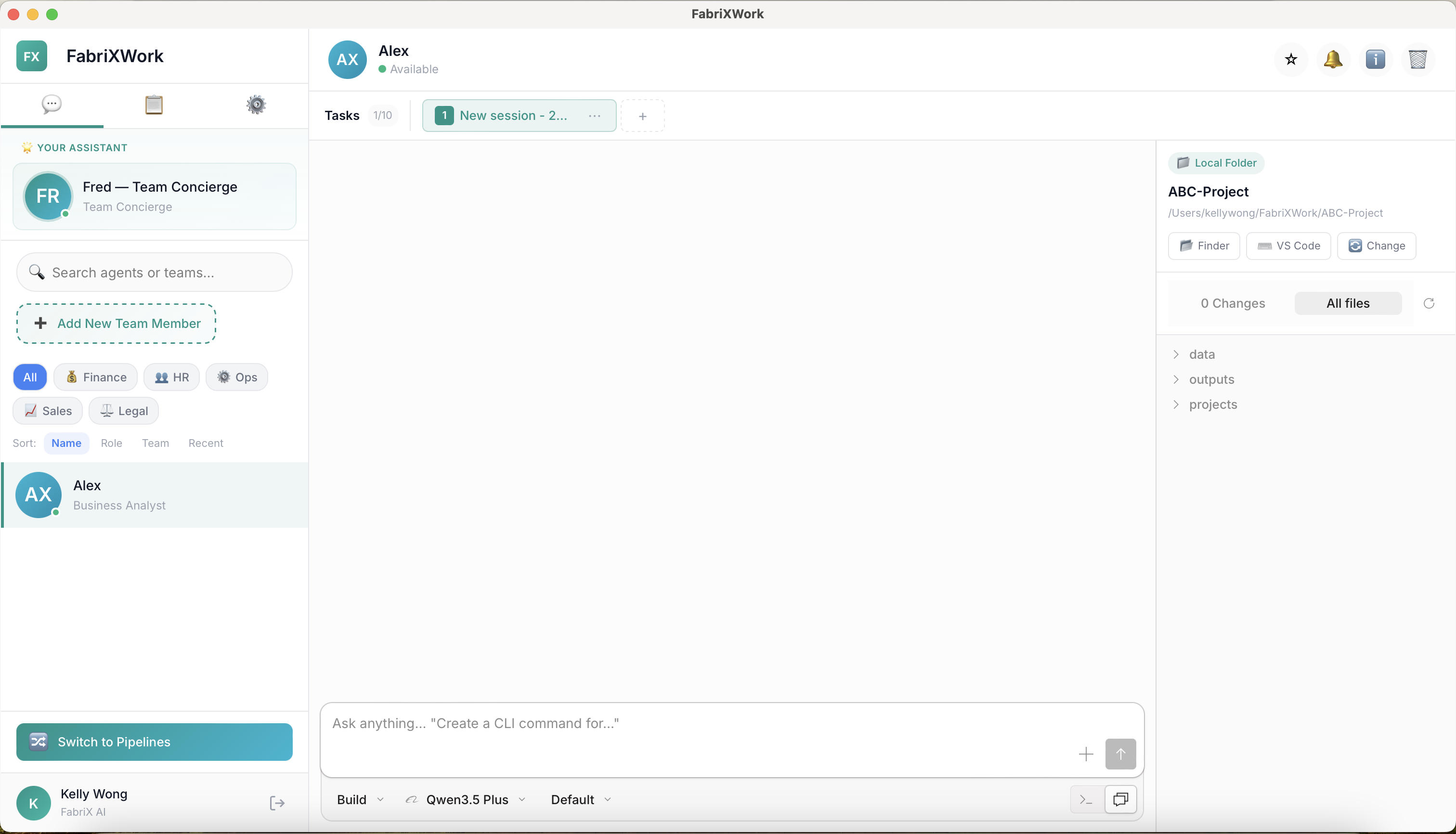
Sidebar (Left Panel)
The sidebar shows all your agents:
- Pinned agents appear at the top (agents you've starred)
- All other agents are listed below
- Click any agent to switch to their chat
- Star an agent to pin them to the top for quick access
Header (Top Section)
The header displays the current agent's information:
- Agent name and role
- Click the header to view full agent details
- Star icon — Click to pin/unpin the agent in your sidebar
- Agent Profile — Access agent-specific configurations
Chat Area (Center)
The main conversation space:
- Message history — All your previous conversations with this agent
- Chat input box — Type your instructions at the bottom
- Send button — Submit your instruction
- File attachments — Add files directly to your message (if supported)
Folder Structure (Right Panel)
The right panel shows your connected workspace:
- Folder tree — Navigate your connected folder structure
- File list — See all files the agent can access
- File preview — Click files to preview content
- Agents can read and (in Build Mode) modify these files
Configure Your Agent Before Asking
Before sending your first instruction, you can adjust several settings to control how the agent works.
1. Plan Mode vs Build Mode
One of the most important settings is choosing between Plan Mode and Build Mode.
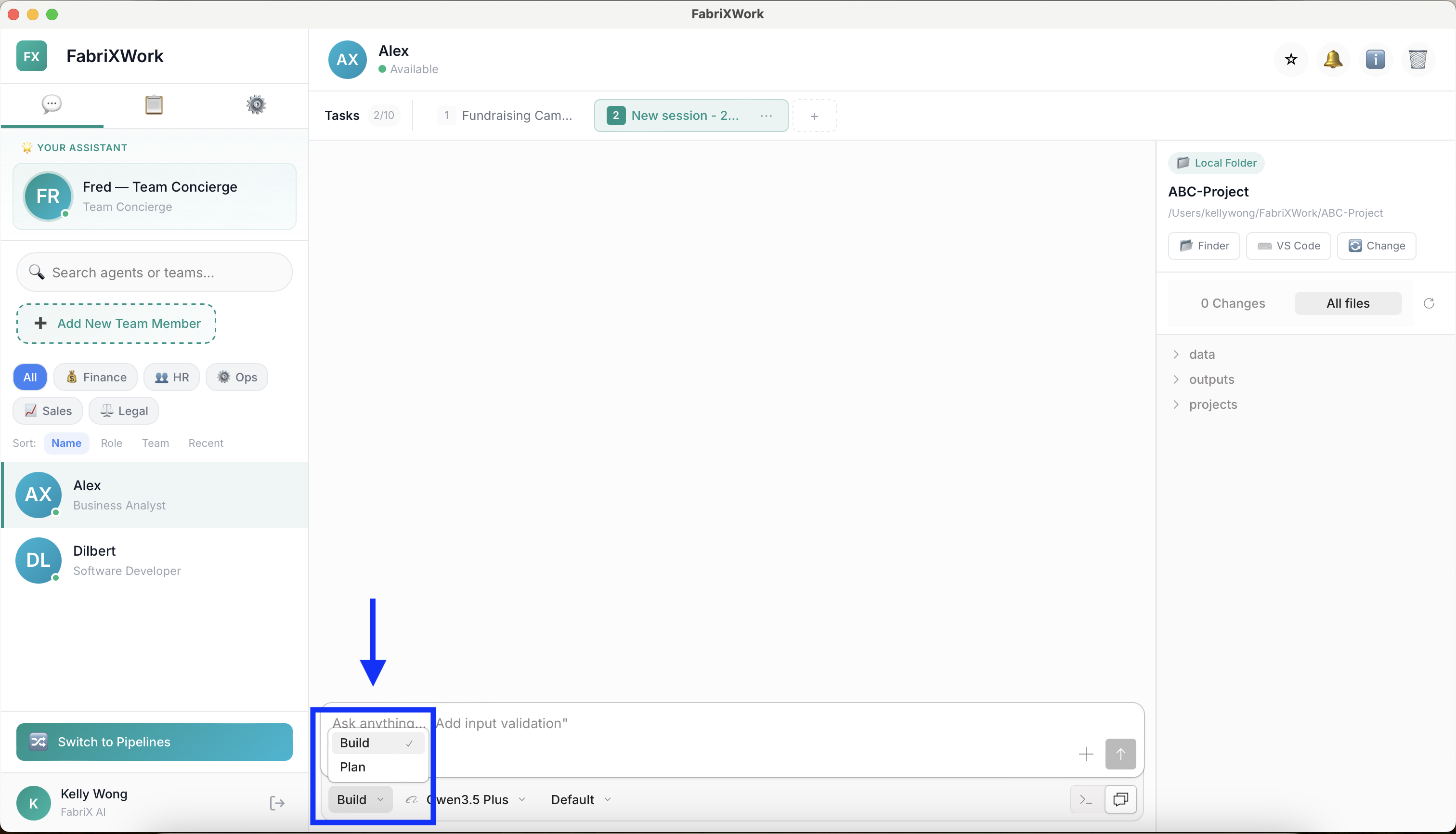
| Mode | What It Does | When to Use |
|---|---|---|
| Plan Mode | Agent analyzes and plans, but does not modify any files | Initial exploration, reviewing existing content, planning structure, getting recommendations |
| Build Mode | Agent can read and modify files in your connected folder | Executing tasks, creating new files, updating documents, implementing changes |
Best Practice: Plan First, Build Later
A recommended workflow is to start with Plan Mode, then switch to Build Mode:
Step 1: Plan Mode
"Review the files in my Fundraising Campaign folder and suggest a structure
for organizing our campaign materials. What files should we create?"
Step 2: Review the plan
- Agent provides recommendations
- You review and refine the approach
- No files are changed yet
Step 3: Switch to Build Mode
"Great plan! Now create the folder structure and draft the initial documents
we discussed."
This approach helps you:
- ✅ Understand what the agent will do before it makes changes
- ✅ Refine the approach without risking unwanted file modifications
- ✅ Get multiple plan options before committing to one
2. Choose AI Model
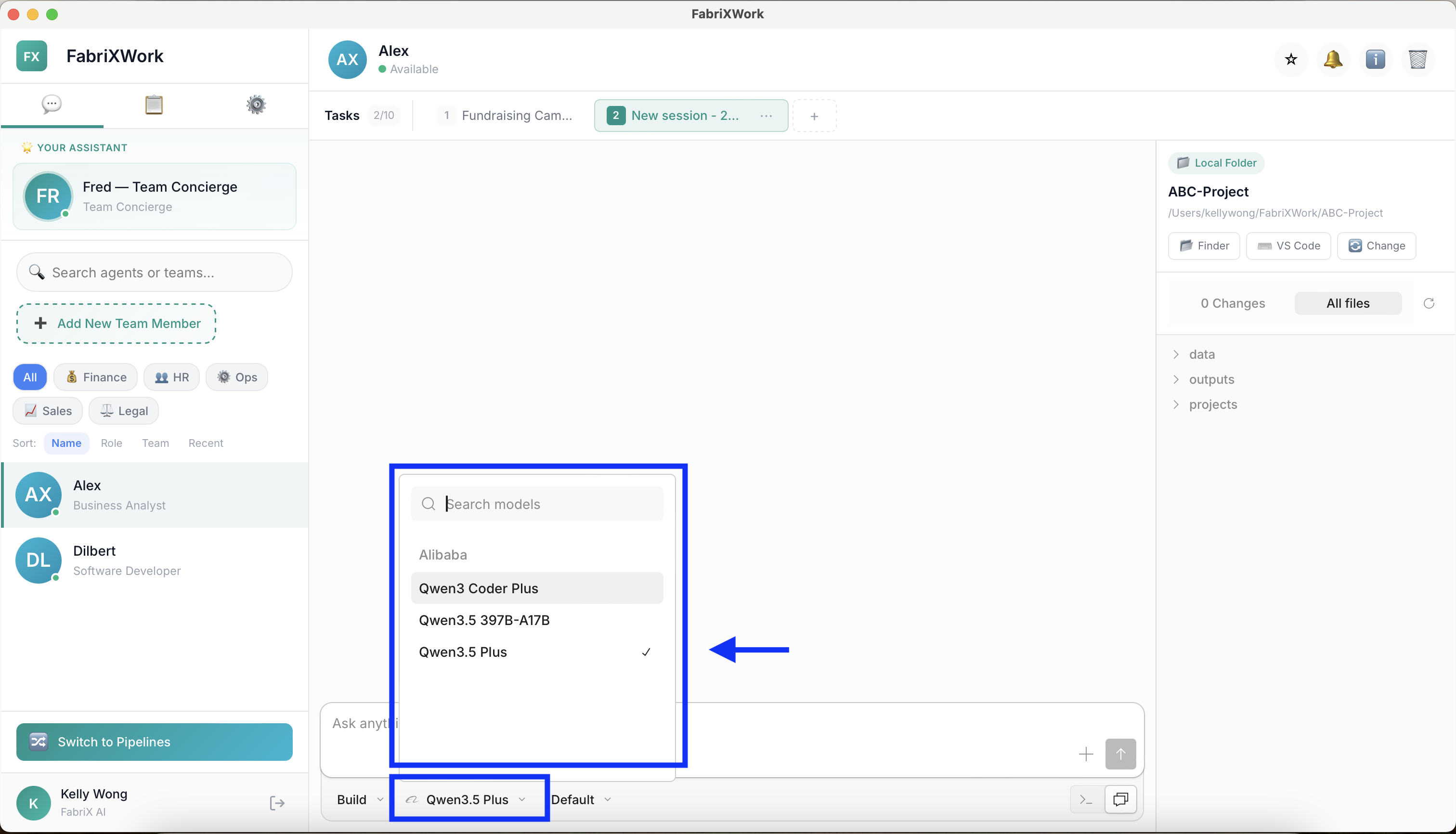
Different AI models have different strengths:
- Faster models — Quick responses for simple tasks
- Advanced models — Better reasoning for complex analysis
- Specialized models — Optimized for specific tasks (coding, writing, etc.)
How to select:
- Click the model selector in the chat header
- Choose a model based on your task complexity
- Consider speed vs quality trade-offs
3. Configure Thinking Method
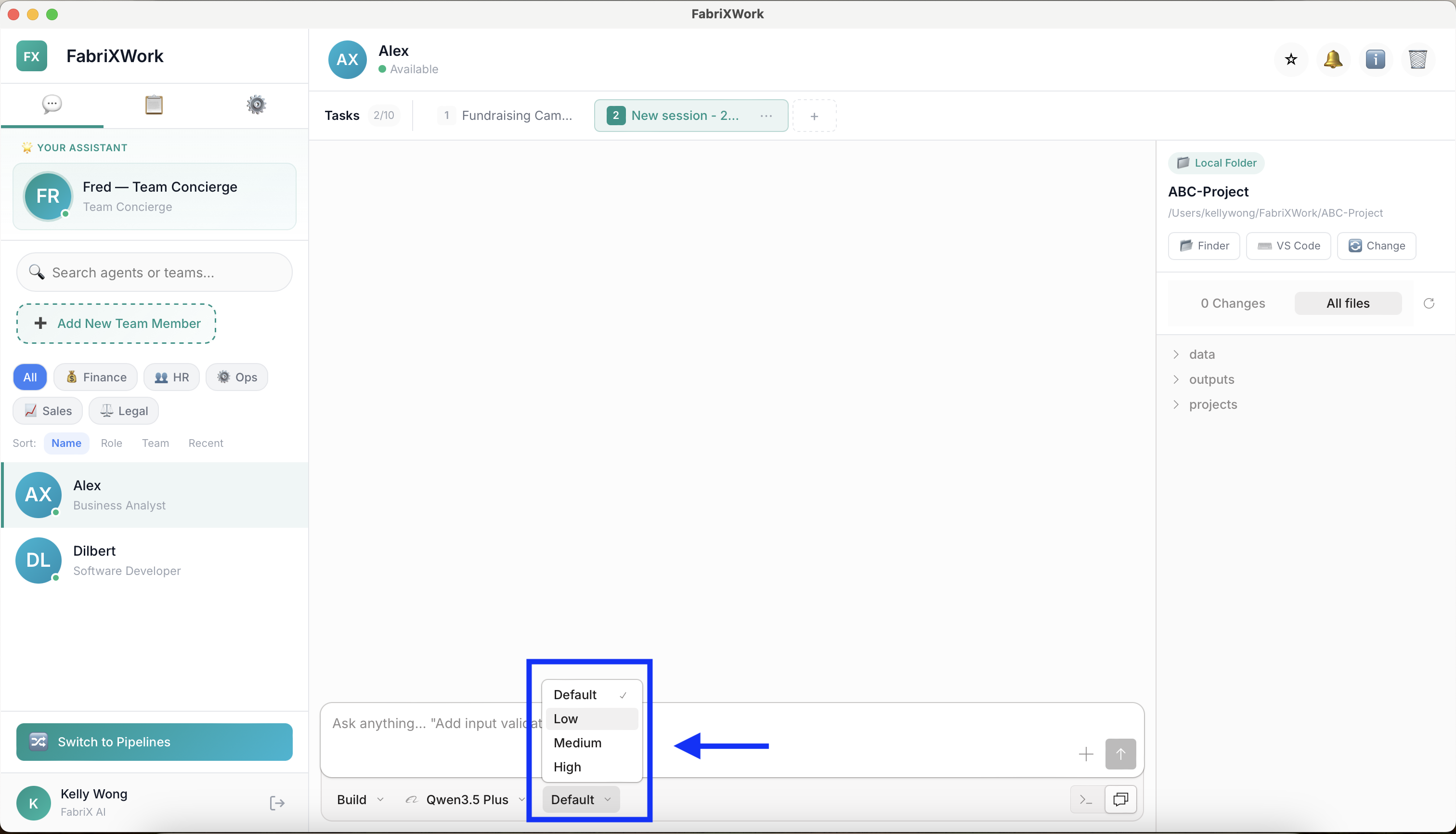
Control how deeply the agent thinks before responding:
| Setting | Best For | Response Time |
|---|---|---|
| Low | Simple questions, quick lookups | Fastest |
| Default | Standard tasks, general instructions | Balanced |
| Medium | Complex analysis, multi-step tasks | Slower |
| High | Deep research, strategic planning, complex problem-solving | Slowest |
Recommendation: Start with Default, then increase depth if the agent's responses seem superficial for your task.
The Basics of Agent Interaction
Agents in FabriXWork are like skilled teammates—they have expertise, but they need clear direction from you.
The Interaction Flow
1. You give an instruction
         ↓
2. Agent processes your request
         ↓
3. Agent asks clarifying questions (if needed)
         ↓
4. Agent executes the task
         ↓
5. Agent delivers output
         ↓
6. You review and iterate (if needed)
Good vs Bad Instructions
❌ Bad Instruction (Too Vague)
"Make a presentation"
Problems:
- No topic specified
- No audience defined
- No format or structure requested
- Agent doesn't know what to do
✅ Good Instruction (Clear & Specific)
"Create a 10-slide presentation with frontend-slides about our Q1 marketing results for the executive team.
Include slides on: campaign performance, budget vs actuals, key wins, and lessons learned.
Use a professional tone and include data visualizations where possible."
Why it works:
- ✅ Clear topic (Q1 marketing results)
- ✅ Defined audience (executive team)
- ✅ Specific structure (10 slides, specific topics)
- ✅ Tone guidance (professional)
- ✅ Format preference (data visualizations)
Key Principles for Effective Instructions
1. Provide Context
Without context:
"Write a report"
With context:
"We just completed the customer satisfaction survey for Q1.
Write a summary report highlighting the top 3 improvements and 2 areas needing attention."
What context helps:
- Background information
- Why this task matters
- Who will use the output
- Any constraints or requirements
2. Be Specific About Output Format
Vague:
"Give me the data"
Specific:
"Provide the data as a table with columns: Name, Department, Start Date, and Manager.
Sort by Department, then by Name."
Format options you can request:
- Table
- Bullet points
- Numbered list
- JSON format
- Paragraph summary
- Email draft
- Presentation outline
3. Ask for Structured Output
Unstructured:
"Tell me about the project status"
Structured:
"Provide a project status update with these sections:
1. Completed This Week
2. In Progress
3. Blockers
4. Next Week's Priorities
5. Risks"
4. Iterate for Better Results
Your first instruction might not be perfect—that's okay! Agents are designed for iteration.
Example iteration flow:
First attempt:
"Create a list of competitors in the fintech space"
Agent provides a basic list
Refinement:
"Good start! Now organize them by category (payments, lending, wealth management).
For each competitor, add: founding year, funding raised, and key differentiator."
Second refinement:
"Perfect! Now export this as a table and save it to my Research folder as 'Fintech_Competitors.xlsx'"
Practical Examples
Example 1: Document Analysis
Task: Review a contract and summarize key points
Instruction:
I'm uploading a vendor contract. Please:
1. Identify the contract type and parties involved
2. List all payment terms and amounts
3. Highlight any auto-renewal clauses
4. Flag any unusual terms or potential risks
5. Summarize in bullet points

Save your analysis to the Contracts folder.
Example 2: Data Extraction
Task: Extract information from multiple files
Instruction:
Review all the interview transcripts in the Research folder and:
1. Extract all mentions of "pricing concerns"
2. Group them by customer segment (Enterprise, SMB, Startup)
3. Create a summary table with: Segment, Concern, Frequency, Quote
4. Identify the top 3 pricing concerns overall

Output as a formatted table.
Example 3: Content Creation
Task: Write an email
Instruction:
Draft a follow-up email to attendees of yesterday's webinar.

Include:
- Thank them for attending
- Link to the recording (use placeholder: [RECORDING_LINK])
- Link to the slides (use placeholder: [SLIDES_LINK])
- Mention the next webinar date: March 20, 2026
- Call-to-action: Schedule a demo

Tone: Friendly and professional
Length: Under 200 words
Providing Context Files
Agents can work with files in your connected folders.
How to Reference Files
Option 1: Direct reference
"Use the Q1_Report.docx file in my Reports folder to create the summary"
Option 2: Folder reference
"Review all files in the Customer_Feedback folder and identify common themes"
Option 3: Let the agent explore
"Look at the files in my current workspace and tell me what data is available"
Asking Clarifying Questions
If you're not sure how to phrase something, ask the agent!
Examples:
"What information do you need from me to create this report?"
"Is there a better way to structure this request?"
"What format would work best for this output?"
Common Mistakes to Avoid
| Mistake | Better Approach |
|---|---|
| Too vague | Be specific about what you want |
| No context | Provide background information |
| No format specified | Request a specific output format |
| One-shot expectation | Plan to iterate and refine |
| Assuming agent knows your files | Reference files explicitly |
| Overly complex single request | Break into multiple steps |
Quick Reference: Instruction Templates
For Document Tasks
"Review [FILE/FOLDER] and [ACTION]. Output as [FORMAT] with [SECTIONS/STRUCTURE]."
For Data Tasks
"Extract [DATA TYPE] from [SOURCE]. Organize by [CRITERIA]. Output as [FORMAT]."
For Content Creation
"Create [CONTENT TYPE] about [TOPIC] for [AUDIENCE]. Include [ELEMENTS]. Tone: [TONE]."
For Analysis Tasks
"Analyze [DATA/SUBJECT] and identify [WHAT TO FIND]. Present findings as [FORMAT]."