
Add Your First AI Agent
This guide continues from the Installation Guide. Now that you've installed FabriXWork and logged in, let's set up your first AI agent.
Estimated time: 5 minutes
Meet Fred — Your Team Concierge
Before adding your first agent, you'll notice Fred — Team Concierge is already available in your sidebar:
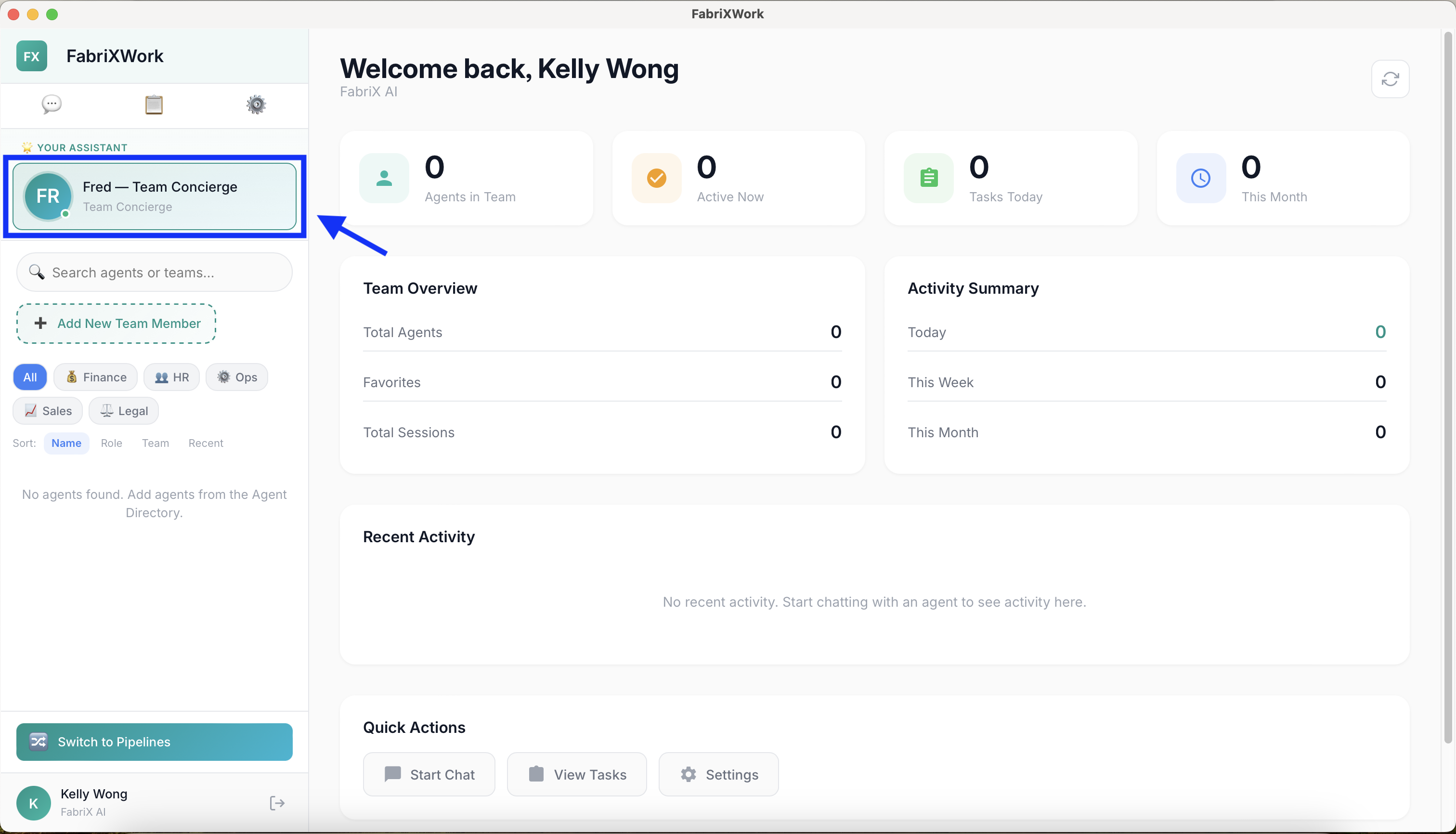
Fred is your built-in AI assistant who helps you:
- Find the right agent for any task (e.g., "Which agent should I use to build a web app?")
- Answer questions about using FabriXWork
- Coordinate between team members when you need multiple agents working together
Fred is not connected to any folder and has no workspace configured. Think of him as a general assistant for learning FabriXWork, rather than executing specific workflows.
Add Your First Agent: Alex - Business Analyst
Let's add your first working agent using Alex - Business Analyst as an example.
Step 1: Open the Agent Directory
- Look at the left sidebar
- Click the "+ Add New Team Member" button
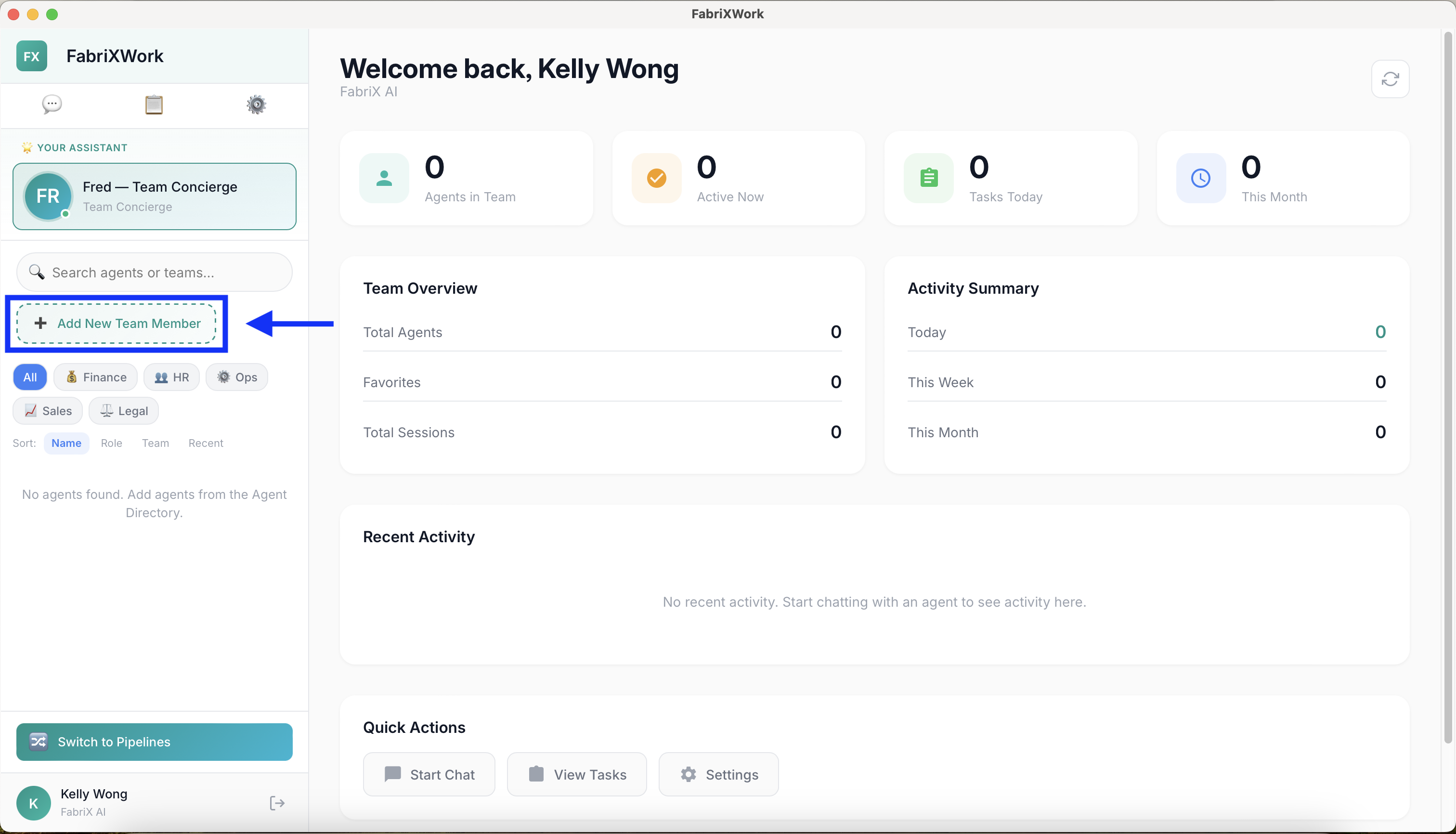
- The Agent Directory opens
Step 2: Find Alex
In the Agent Directory:
- Use the search bar to type "Alex"
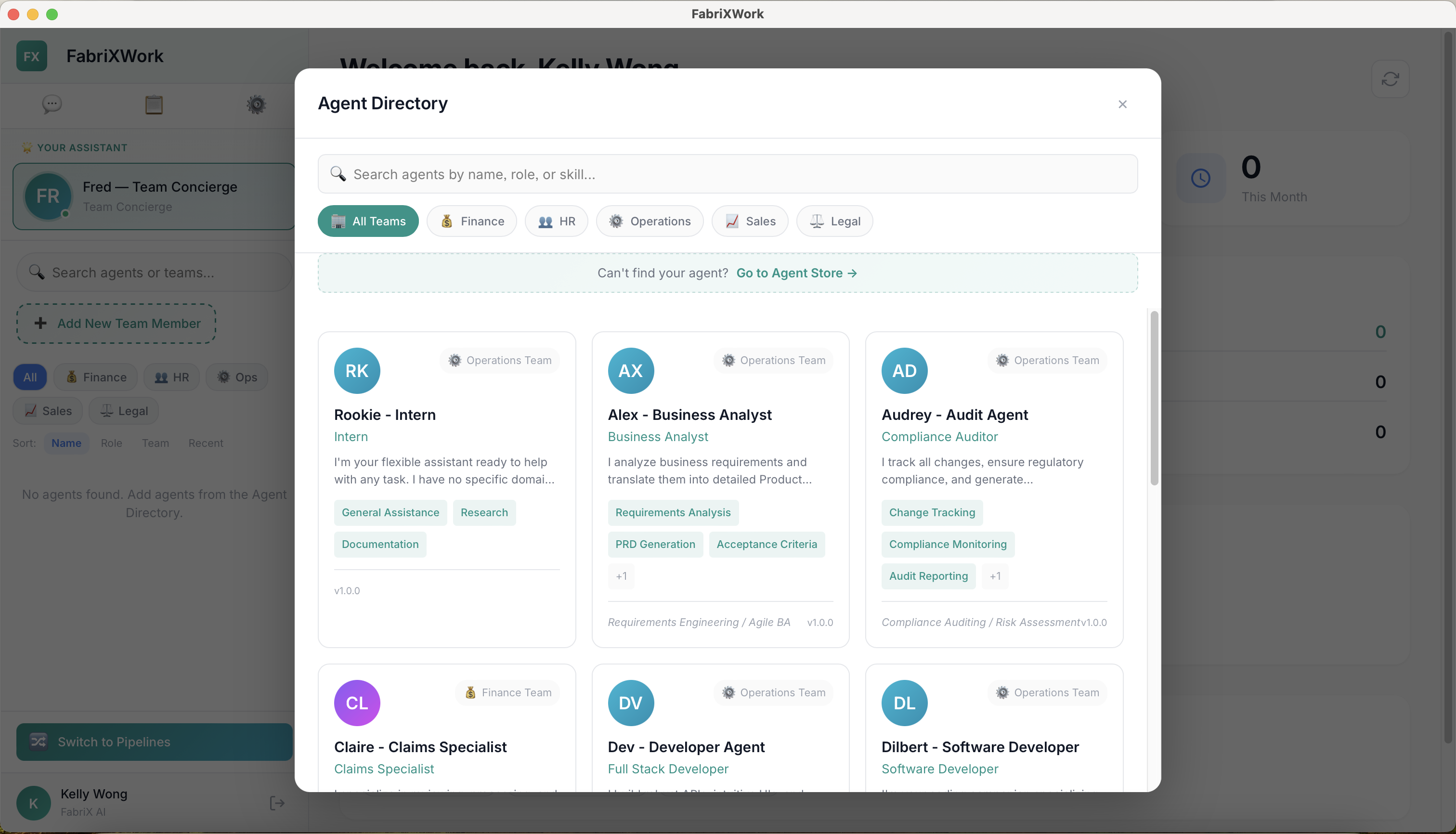
- Or browse by team (Alex is under Operations)
- Click on the Alex - Business Analyst card
Step 3: Add Alex to Your Team
- On Alex's profile page, click "Add to My Team"
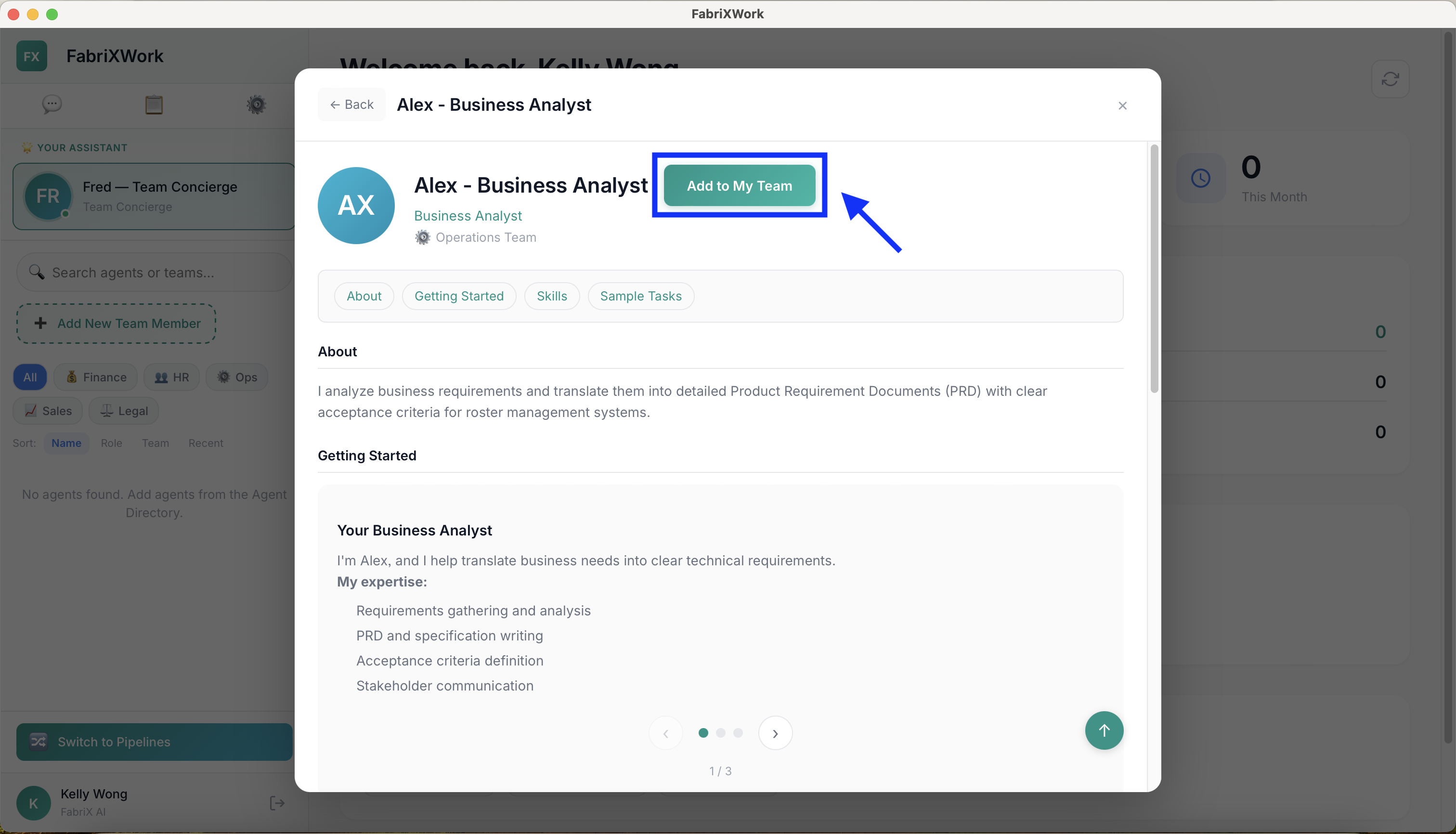
- A confirmation modal appears
- Keep the default display name "Alex" (or customize it if you prefer)
- Click "Add to Team"
Connect Alex to a Local Folder
This is a key step: each agent needs a local folder to work with.
Why Connect a Folder?
Agents interact with files in their connected folder. They can:
- Read documents to understand context
- Analyze spreadsheets and extract insights
- Generate new files based on your instructions
- Update existing documents
How to Connect a Folder
- After adding Alex, click on Alex in your sidebar
- The main chat area opens
- You'll see a prompt to connect a workspace folder
- Click "Browse"
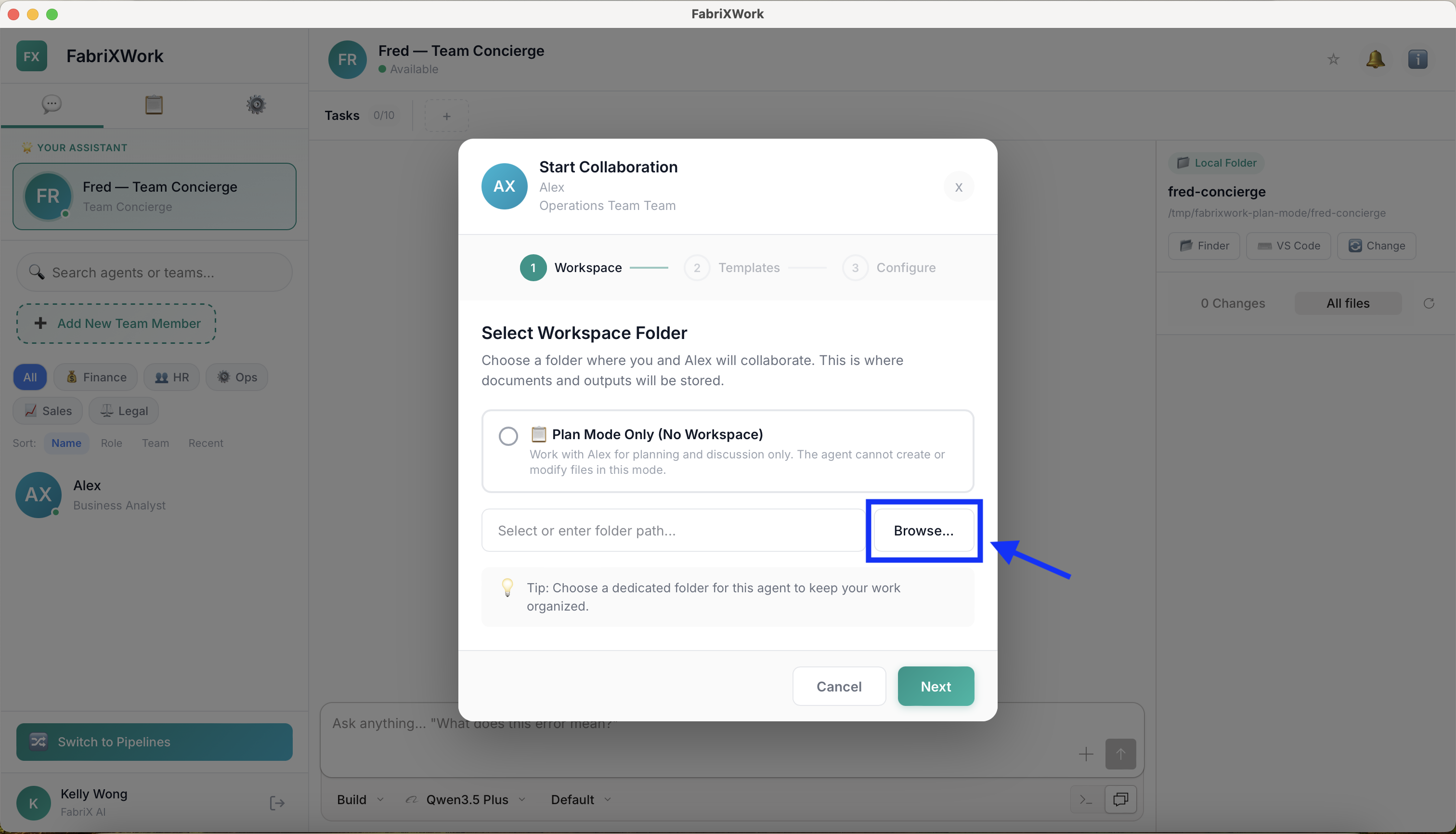
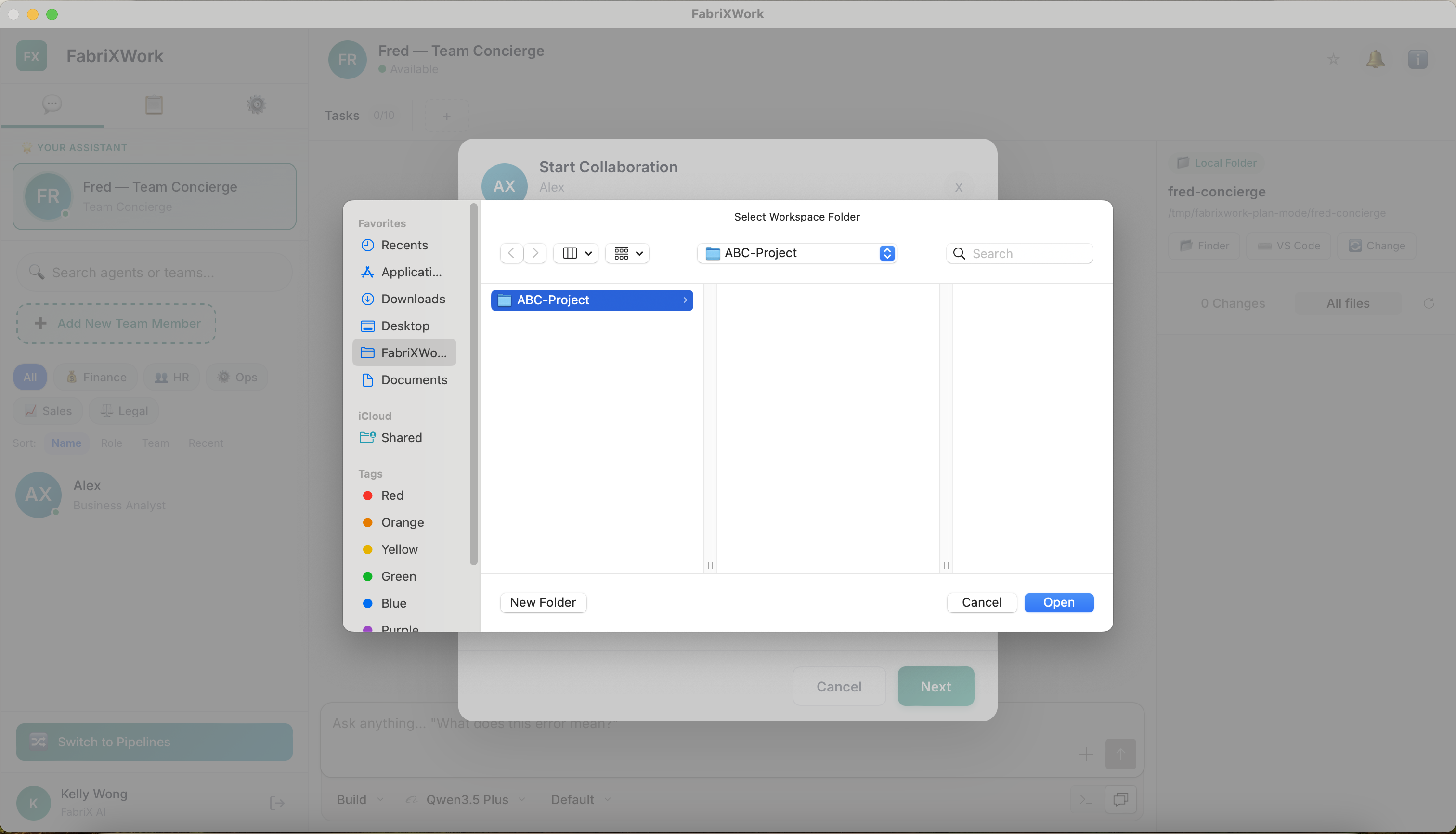
- Navigate to a folder on your computer and select it
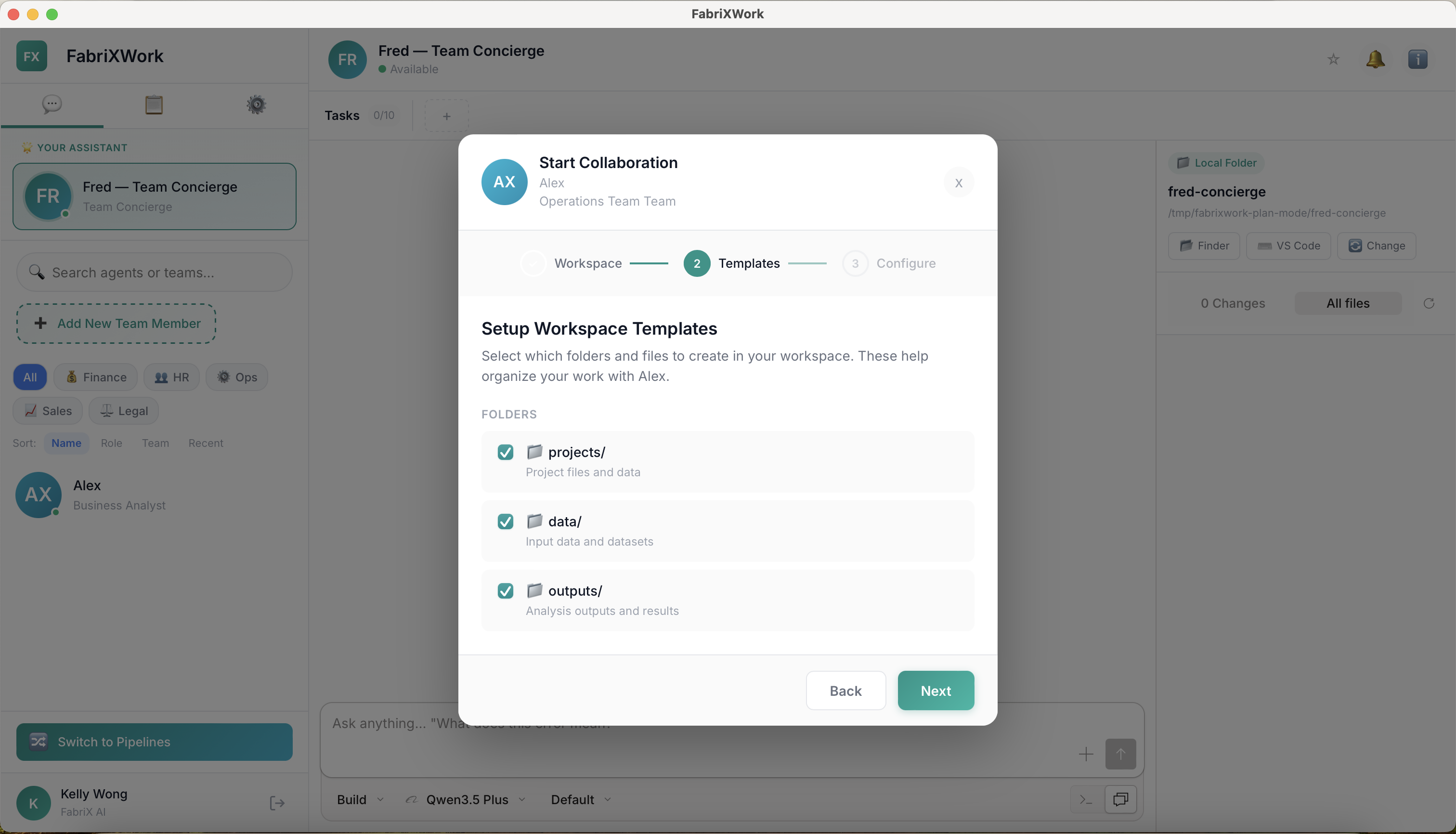
- Set up the workspace templates with all the suggested folder structure enabled, then click "Next"
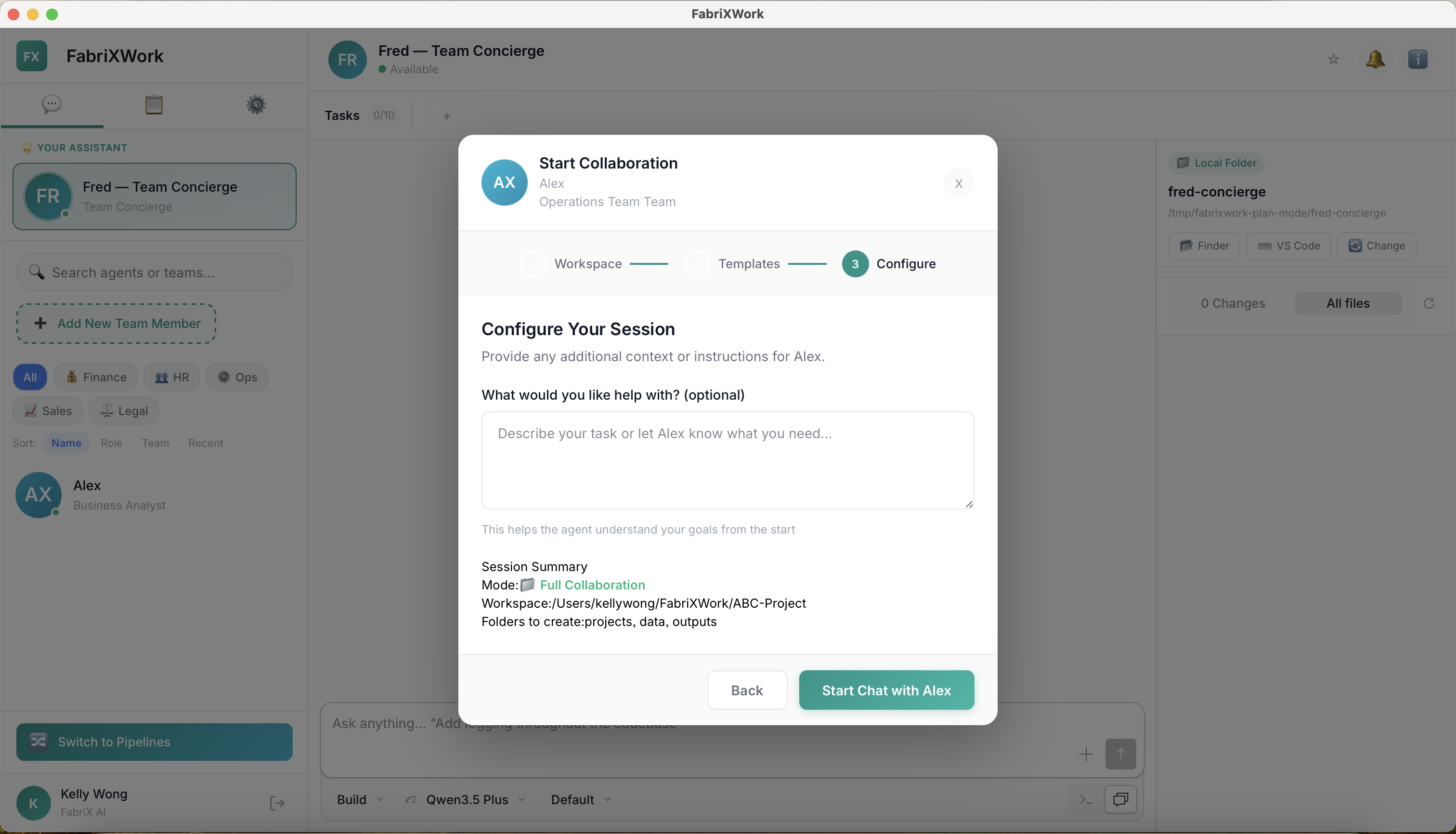
- (Optional) Add additional instructions to let Alex know what the project is about, then click "Start Chat with Alex"
- Alex is now ready. You can continue adding related files to provide more context—see the example below.
Example: NGO Fundraising Campaign Folder
For this example, imagine you work at an NGO planning a fundraising campaign. You've created a folder called ABC-Project" with:
ABC-Project/
├── fundraising-campaign-2026/
│   └── ideas.docx
└── meeting-notes/
    ├── meeting-notes-20260223.docx
    ├── meeting-notes-20260302.docx
    └── meeting-notes-20260309.docx
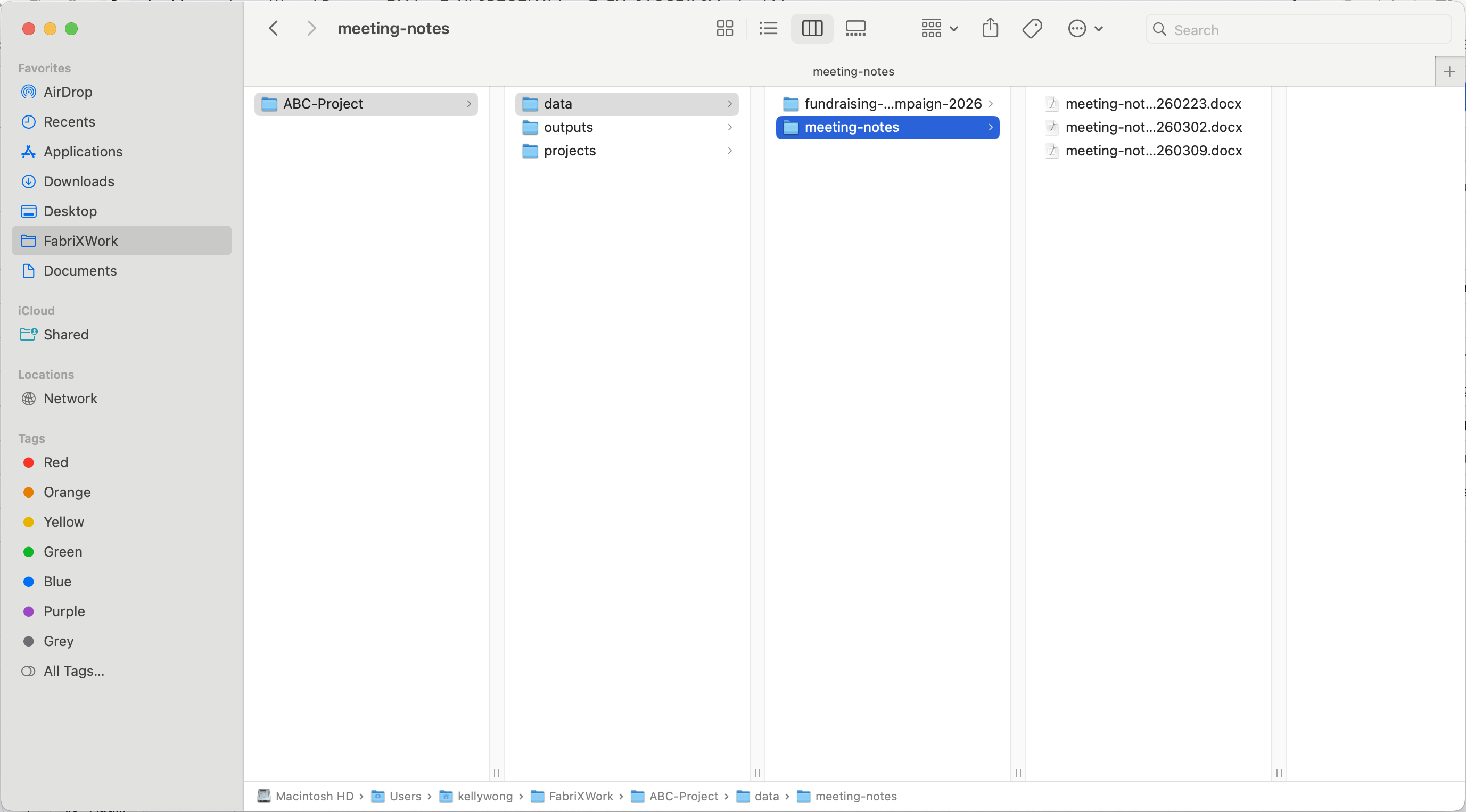
Once connected, Alex can read these files to help you:
- Summarize meeting notes
- Generate campaign proposals
- Create presentation outlines
- Draft sponsorship emails
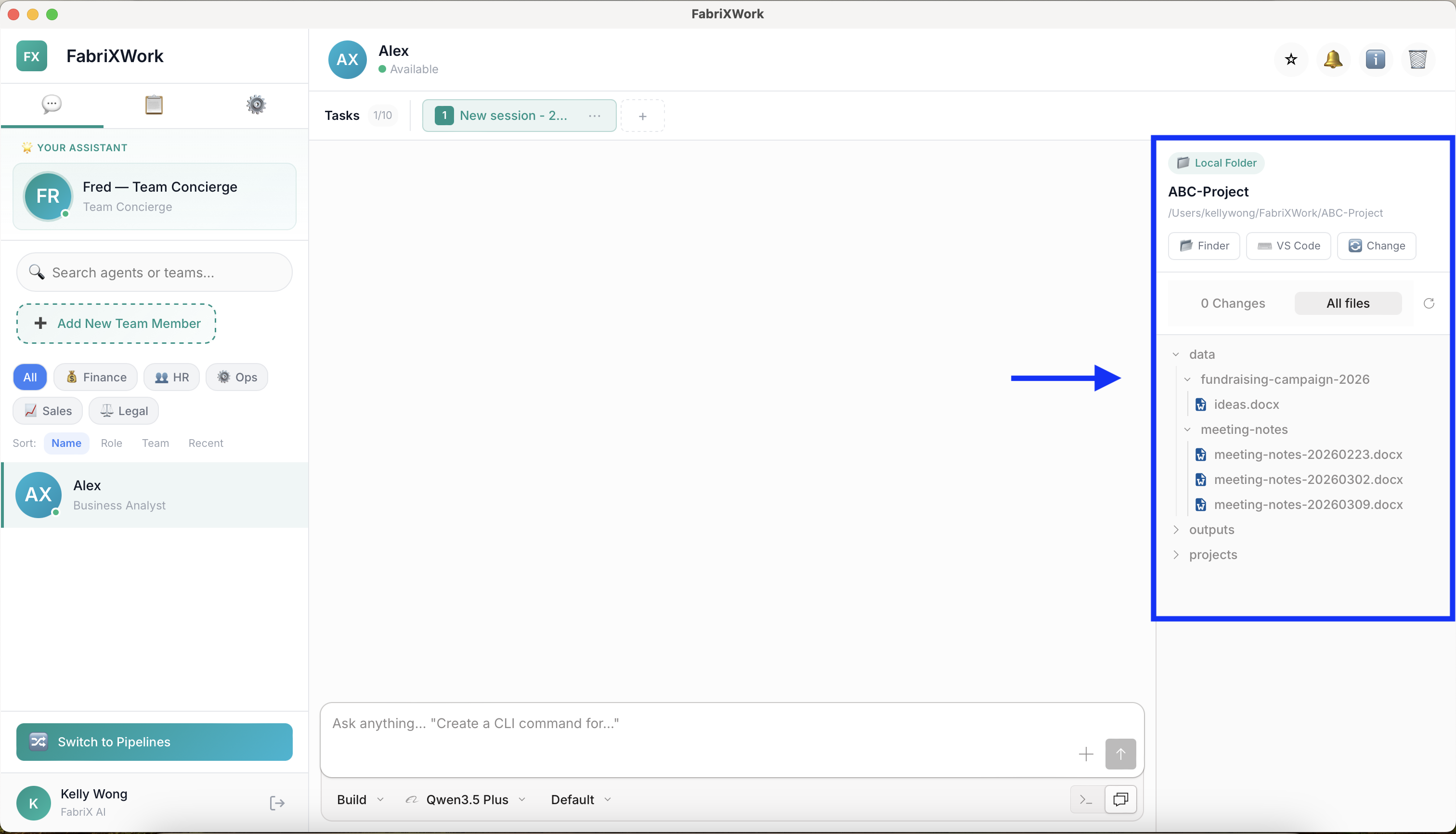
Start Interacting with Alex
Now that Alex is connected to your folder, let's try your first interaction.
Example: Ask Alex to Review Meeting Notes
Type this in the chat box at the bottom:
Hi, I've just connected our Fundraising Campaign folder.
Can you review the meeting notes and summarize the key decisions we've made so far?
Press Enter or click the Send button.
What Happens Next
Alex will:
- Read the files in the connected folder
- Analyze the meeting notes
- Generate a summary of key decisions
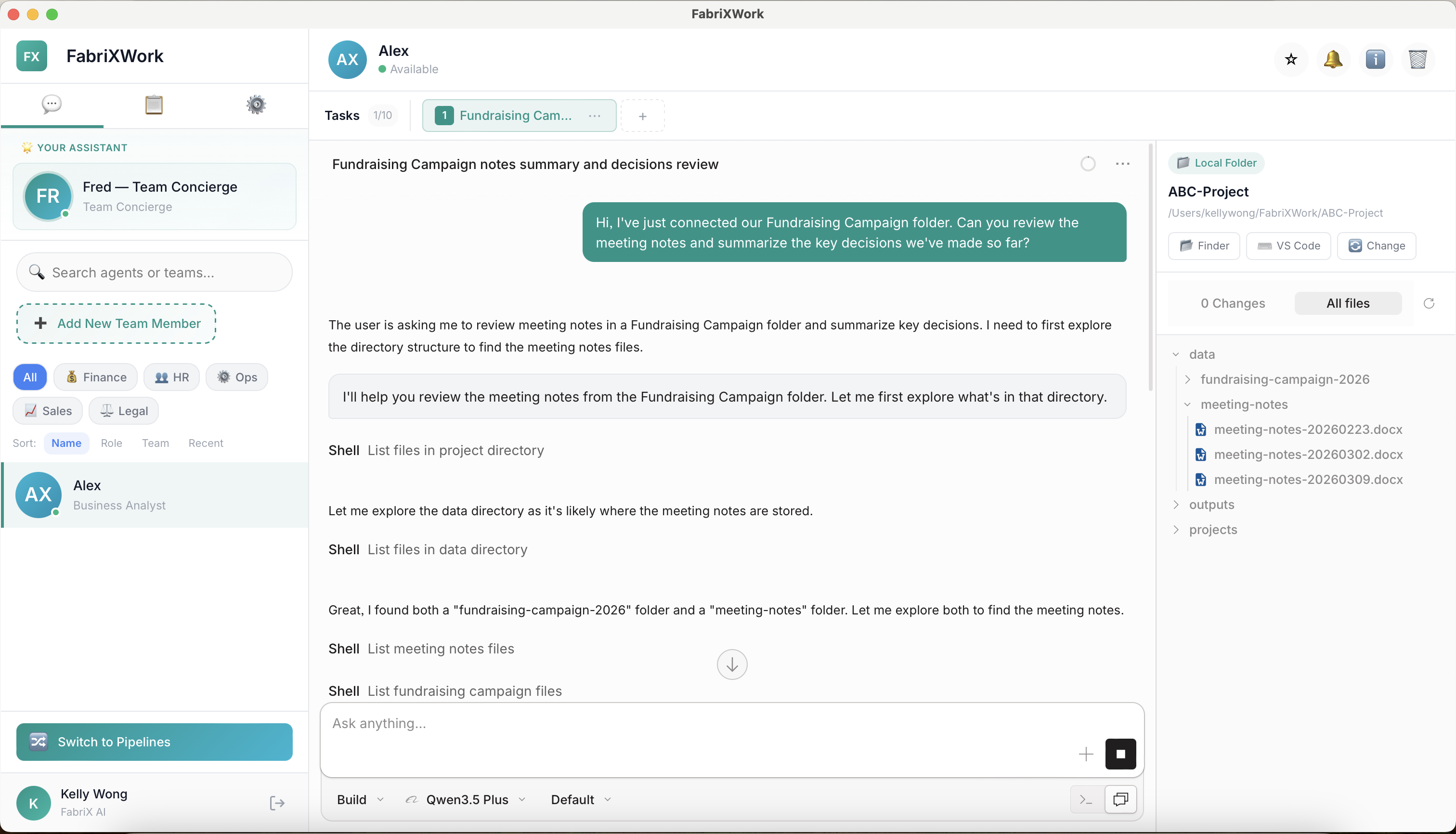
Your First Agent Is Ready!
Congratulations! You've successfully:
- ✅ Added Alex - Business Analyst to your team
- ✅ Connected a local folder for Alex to work with
- ✅ Asked your first question and received a response
What's Next?
You've completed the basic setup. Now it's time to learn how to get better results from your agents.
Continue Learning
Next: Interact with an Agent — Learn best practices for giving clear instructions and improving your results.
Explore More
- See Use Cases — Real-world examples of what agents can do
- Product Positioning — Understand what makes FabriXWork different
Quick Reference
| Tip | Description |
|---|---|
| One folder per agent | Each agent works with one connected folder at a time |
| Add files anytime | You can add more files to the folder while the agent is working |
| Switch agents easily | Click different agents in the sidebar to switch between them |
| Ask Fred for help | Not sure which agent to use? Ask Fred! |
Troubleshooting
| Issue | Solution |
|---|---|
| Can't connect a folder | Ensure the folder exists and you have read/write permissions |
| Agent doesn't see my files | Check that files are in the connected folder; try refreshing the workspace |
| Alex gives generic answers | Provide more context in your question; reference specific files |
| Want to change the folder | Disconnect the current folder and connect a new one from the workspace panel |
For more tips, see Installation Issues or Agent Output Issues.