
Installation
This guide covers installation for both macOS and Windows. Choose your operating system below.
- For macOS user, please refer to macOS Installation.
- For Windows user, please refer to Windows Installation.
macOS Installation
Step 1: Download the Application
- Download the FabriXWork ZIP file from the provided link
- Save it to your Downloads folder (or preferred location)
Step 2: Unzip the File
- Double-click the ZIP file to extract its contents
- You should see the FabriXWork application file (
FabriXWork.app)
Step 3: Move to Applications Folder
- Drag the
FabriXWork.appfile to your Applications folder - Alternatively, keep it in your preferred location
Step 4: First Launch & Security Warning
If you see this message: On first launch, macOS may show a security warning:
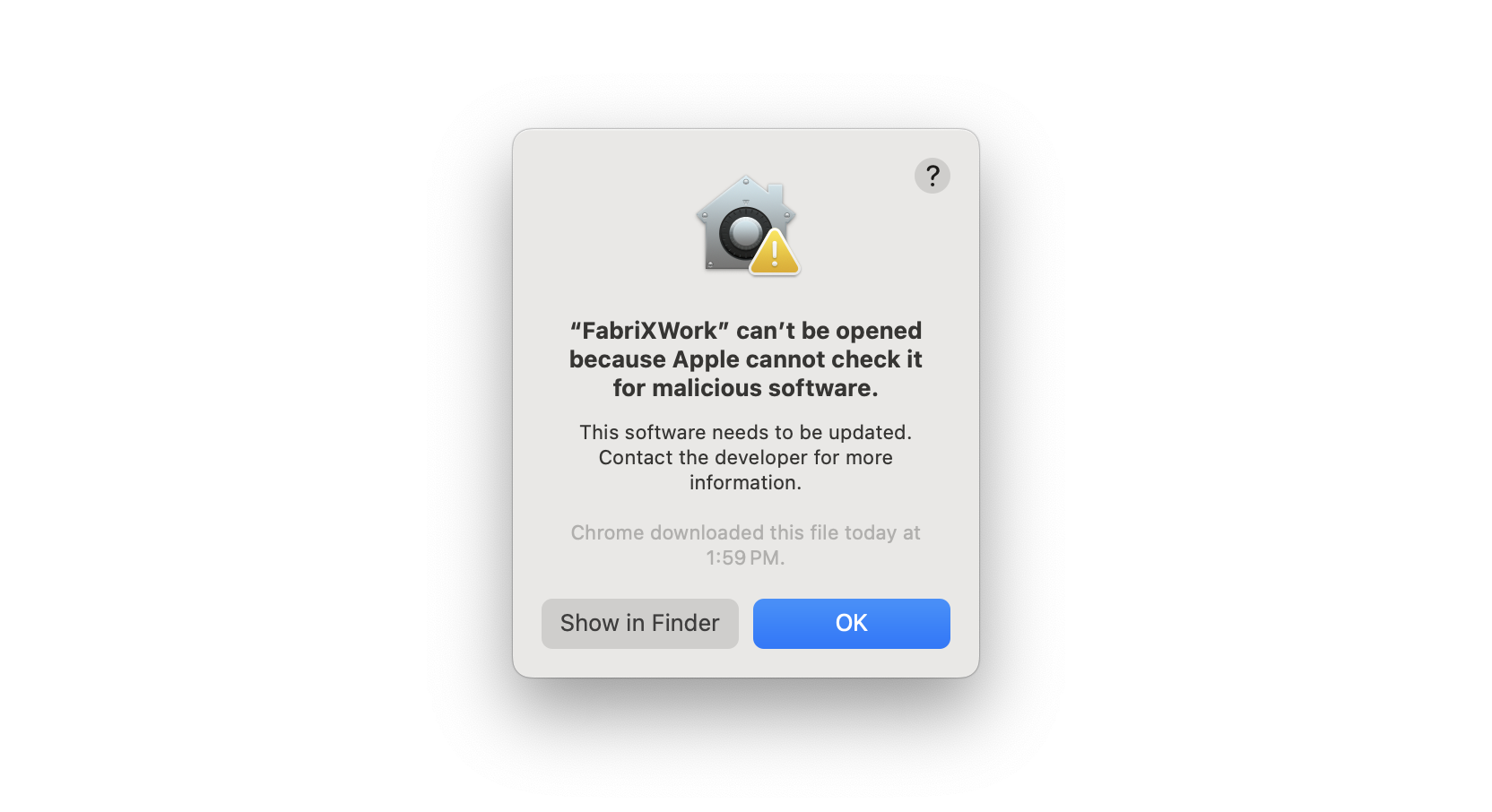
To open the app:
- Click OK on the warning dialog
- Go to System Settings → Privacy & Security
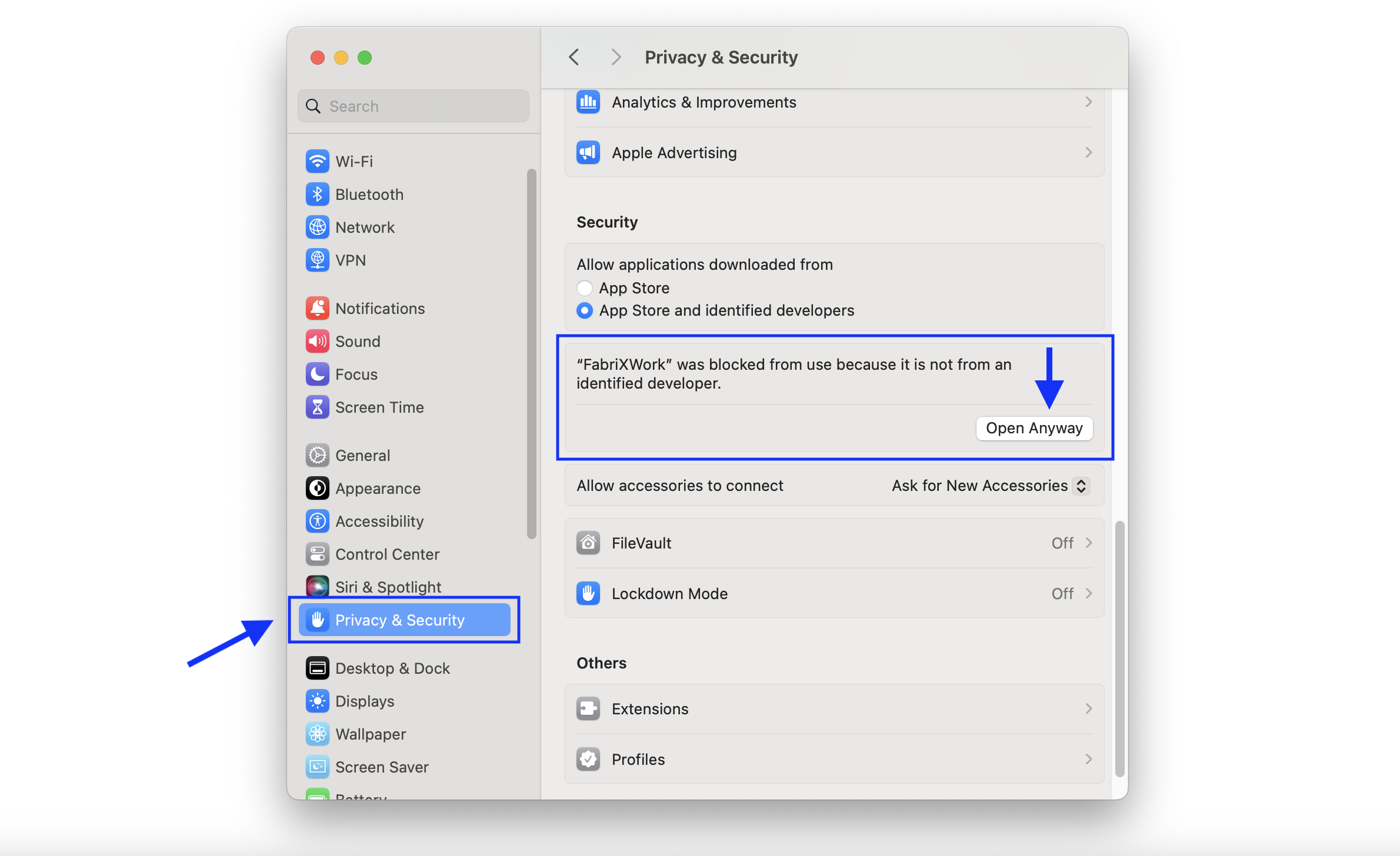
- Scroll down to find the security message about FabriXWork
- Click Open Anyway
- Confirm by clicking Open in the dialog
Step 5: First Login
- Launch FabriXWork from Applications (or your chosen location)
- Enter your organization ID (provided by your administrator)
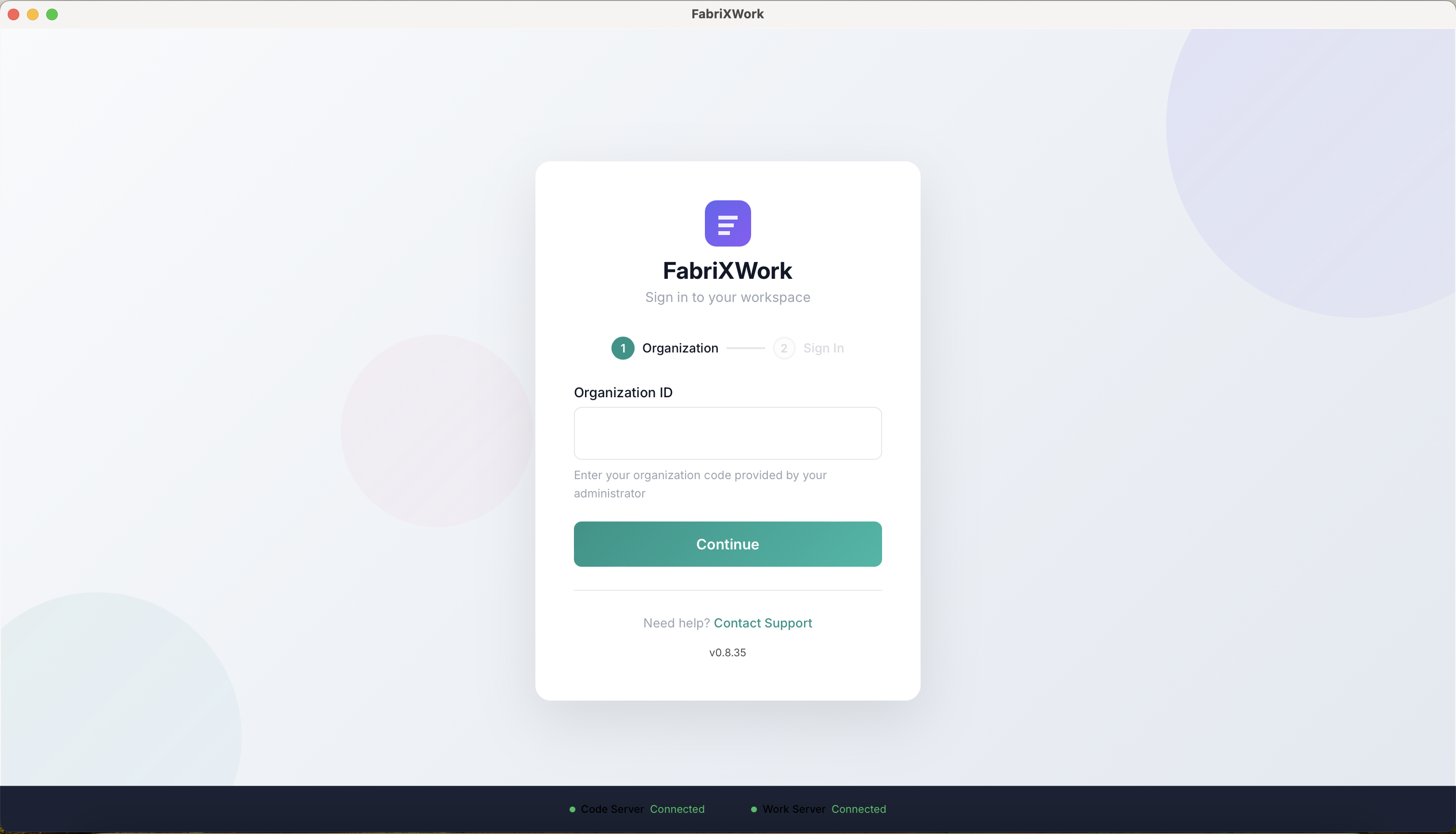
- Enter your credentials (provided by your administrator)
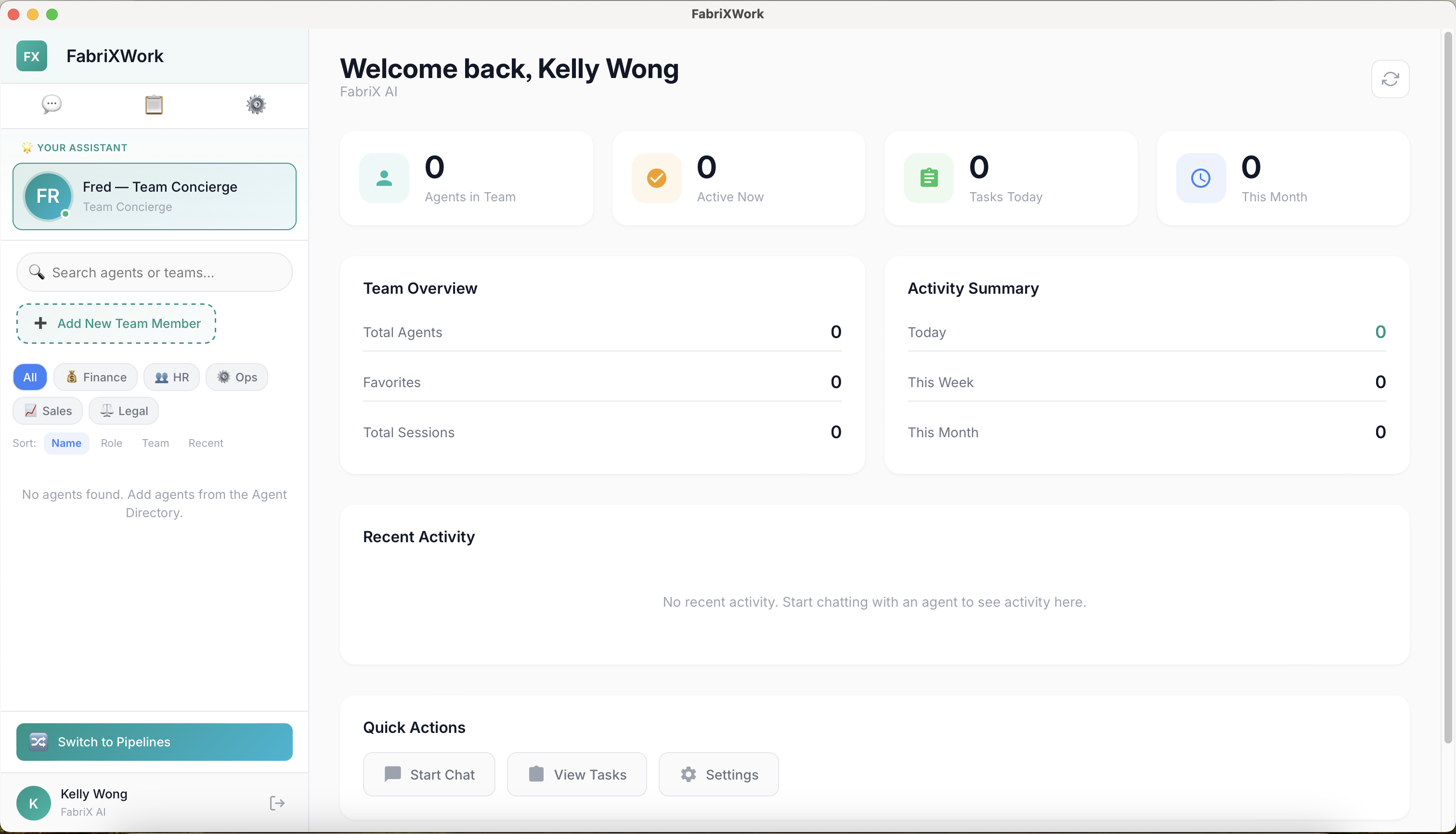
- You should see the welcome dashboard
Windows Installation
Step 1: Download the Application
- Download the FabriXWork ZIP file from the provided link
- Save it to your Downloads folder (or preferred location)
Step 2: Unzip the File
- Right-click the ZIP file
- Select Extract All...
- Choose a destination folder
- Click Extract
Step 3: Run the Installer
- Navigate to the extracted folder
- Double-click the installer file (
FabriXWork Setup.exeor similar) - Follow the installation wizard prompts
Step 4: Install Dependencies (If Prompted)
Note: FabriXWork may require certain dependencies to run properly.
If prompted to install Python:
- Python is required for some agent functionalities
- The installer will guide you through the Python installation
- Accept the default settings unless you have specific requirements
- You may need to restart your computer after installation
If prompted for other dependencies:
- Follow the on-screen instructions
- Accept the license agreements
- Use default installation paths
Step 5: First Login
- Launch FabriXWork from Applications (or your chosen location)
- Enter your organization ID (provided by your administrator)
- Enter your credentials (provided by your administrator)
- You should see the welcome dashboard
Common Setup Issues
macOS Issues
| Issue | Solution |
|---|---|
| "App can't be opened" warning | Go to System Settings → Privacy & Security → Click "Open Anyway" |
| App crashes on launch | Check that you moved the app to Applications folder; try right-click → Open |
| Folder access denied | Go to System Settings → Privacy & Security → Files and Folders → Grant access |
| Login fails | Check your internet connection; verify credentials with admin |
Windows Issues
| Issue | Solution |
|---|---|
| Installer won't run | Right-click → Run as Administrator |
| Python installation fails | Download Python manually from python.org; install first; then retry FabriXWork |
| "Missing DLL" error | Re-run the installer; ensure all dependencies are selected |
| App won't start after install | Check Windows Defender/Antivirus; add FabriXWork to exclusions |
| Login fails | Check your internet connection; verify credentials with admin |
What's Next?
After successful installation:
- ✅ You're logged in with your account
- ✅ You should see the FabriXWork dashboard
Now you are ready to add your first AI agent. Let's get started!
Need Help?
If you encounter issues not covered here:
- See Installation Issues for detailed troubleshooting
- Check Technical FAQ for common questions
- Contact FabriXWork Support Team